Showing posts with label apps. Show all posts

Thursday, November 18, 2010

Fring

Fring is a big money saver. You can chat, and call from your phone all through this one application. This way you don’t have to worry about your phone contract. You can IM on GoogleTalk, AIM, Yahoo, and view Twitter messages among other services. You can call from this application. Essentially this is just a way to keep all of your social media and communication connected and in one place.

Personally I find this really distracting. If you hook up your Facebook and Twitter your stream of statuses and Tweets gets hard to keep track of. Also, they recently took away the video chat capability when Skype split from them. It’s not worth the capabilities you get. Actually, if you don’t continually check on your stream with Fring you end up having a ton of messages built up depending on how many of your friends Tweet and Facebook. Honestly, I don’t really know why you’d want this unless you’re planning on only using a few applications. The Facebook and Twitter applications themselves are easier to use than this, so there’s not really a good reason why you’d want to use this.

Sunday, November 14, 2010

PixelPipe

Pixelpipe is one of the applications that really does everything. They try to combine all of your favorite social media sites into on application. This way, you only need one app to control your social life. You can store email addresses and social networks within the application. This allows you to send photos, or videos to anyone you want to. You can update your blog, Tweet from multiple accounts, and check other social media sites. All you do is check the sites you want your content to be uploaded on in the settings menu. I can send multiple pictures from my camera roll to my Pixelpipe account. It sounds great, but there are definitely some bugs. They’re actually kind of large kinks that really dissuade a user from picking this platform.

Here’s the problem, it doesn’t work as well as it’s marketed. It is incredibly slow when you have big files, or too many pictures. Photos go up relatively easily, sometimes videos have issues uploading. It gets pretty frustrating. Also, it has recently been taken out of the iTunes store. This isn’t the first time this has happened. If you’re going to go for a file transmission app, you should probably find one that is more stable than Pixelpipe. I can still see the videos I’ve already uploaded to the website, and their blog is still around and says they’ve completed Symbian signing. Before that their post was about Pixelpipe for Android. I don’t think this application is worth the hassle, considering now you can’t even find it on the iTunes store. There are other apps out there that have similar functions that work better overall.

For more file transfer applications, check out Jennifer's DropBox post.

Thursday, November 11, 2010

Android Keyboards

To round out our keyboards section, we decided to take a look at alternative keyboards on Android mobile devices.

8pen:
The first keyboard, 8pen, is an alternative to the QWERTY keyboard. The letters are placed on four axes and are arranged in a way so the most common letters used are closer to the middle. This keyboard is supposed to more of a natural motion than the common "pecking" of texting and typing on a mobile device. To type on the 8pen, start your finger on the black dot. If you want to type 'a,' slide your finger from the dot on the side of the red bar where the 'a' is located. Continue moving over the red line and back to the black dot. If you pick up your finger, this will create a space. The circular motions are supposed to mimic writing.

Not surprisingly, this keyboard is very hard to get used to. The letters are not imprinted in my brain like they are with a QWERTY keyboard. I had to keep looking down to find the letters, but sometimes my finger was covering the letters so I had to pick my finger up, creating a space, and take a peek. It took a fair amount of time to get accustomed to this keyboard, but once I got the hang out it I started to like it. It was almost like a game - I wanted to get the process right - without any mistakes. Supposedly, with this keyboard, you will not have to look what you are typing once you memorize the letters, which could be very handy and fast for anyone in need of quick messages. I recommend this application if you have patience and don't mind taking a long time to send messages for a while. For more information, visit the 8pen website or watch the informational video here.

SlideIT:
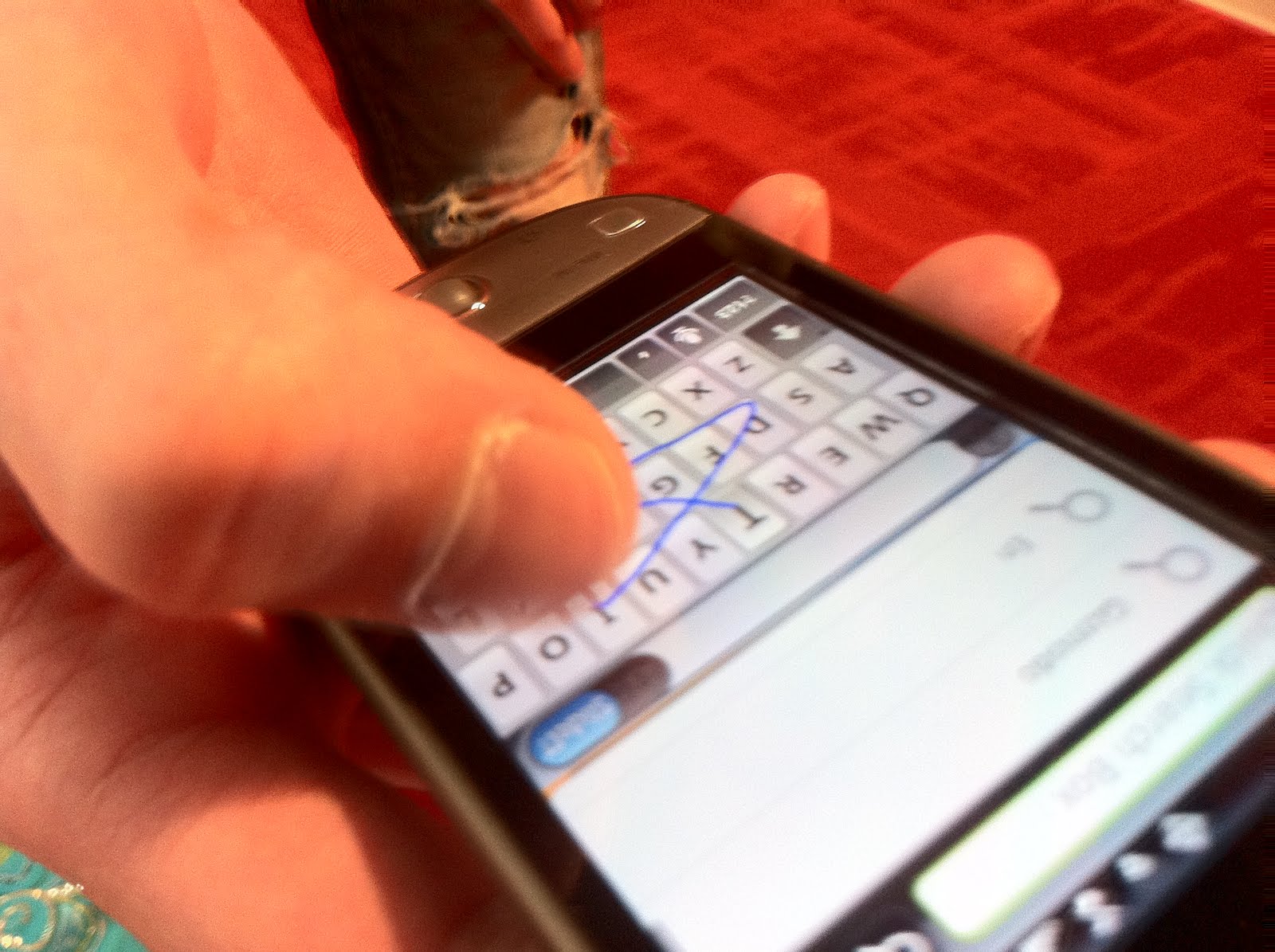
The second keyboard, SlideIT, is an easier way to type on the traditional QWERTY keyboard. Not trying to be cheesy, but instead of picking up your finger, simply slide it - like the name says. It makes typing so much faster than the pecking method of traditional keyboards on mobile devices. Now, people don't have to worry about their finger being too large. You can turn this writing style on and off, so it is really easy to try. It doesn't take very long to get accustomed to this style because you already know the layout and placement of the keys. The only downside of this keyboard is that it tries to guess what word you mean since your fingers don't always hit the proper keys. If you are trying to type in a word that it doesn't recognize it may come up with a "?" or guess something incorrectly. This isn't really a problem, though, because you can add words to the app's vocabulary. This application also comes complete with Graffiti mode, which allows you to draw numbers and letters, which are then read by the mobile device. All in all, I would highly recommend this version of QWERTY typing. It it fast, easy to learn and very convenient. For more information, visit SlideIT's website.

Sunday, November 7, 2010

Photogene

Photogene is easily my favorite photo editing application on the iPhone. It is very simple, yet effective. It does everything that you would want to do to edit your photos in a journalistic function and then some.

The buttons on the side are fairly self-explanatory, but I will briefly go over them. The scissors button is for cropping - simply drag the size of the box you would like and hit crop. The two arrows in the form of a box is for rotating the image. The filter button is the one that looks like an oil filter. This is for more drastic effects such as sharpen, pencil, blur, black & white, posterize, sepia, nightvision and heatmap. You can adjust the strength of each of these filters or reset to the original photo. The color wheel button allows you a great deal of control when it comes to color adjusting. You can change the levels (auto levels works wonderfully), the exposure, the colors and the red-green-blue balance of the photo.

The next two buttons are something that you will most likely not use for journalistic function - the star button allows you to add shapes such as a speech bubble and the square allows you to add a border or frame.

If you make a mistake, click on the back or redo arrows, which are the next buttons down. The final button is used to save your edits. You can change the resolution of the photo (200, 320, 640, 800, 1024, 1600, 2048 and 2592 for high resolution images). You can also preserve geotags, and share your image in a variety of ways such as email, FTP, flickr and Facebook.

Photogene is only $1.99 and I would highly recommend it!

If you don't take my word, take the word of Glyn Evans, the founder of iPhonegraphy. His website, http://www.iphoneography.com/ features all photos shot on mobile devices. This is his opinion of Photogene:
Photogene is like having a desktop photo editor in your pocket, giving you the ability to truly edit your photos on the go, letting you crop, sharpen, straighten, rotate and add frames to your photos, as well as manually or automatically adjust histogram levels, gamma correction, RGB balance, the colour temperature and saturation.

Saturday, October 30, 2010

5-0 Radio

5-0 Radio is a great idea for anyone covering a crime/police beat or for any newsroom who wants to be first on breaking news. There are paid applications that do the same thing, but the 5-0 Radio application does the same thing, for free!

It turns your phone into a police scanner, and depending on your region you can tune in to several different scanners in your region.

When you open the application, you can choose your country and your state. Then, pick your county. Depending on where you live, you may have a few options to a whole list of choices. For Columbia, Missouri, I chose Boone County and I have two options - Boone County Fire and EMS and Boone County Sheriff and Columbia Police. (If you choose Los Angeles County in California, you are given over 20 options).

When you select a scanner to listen to, it tells you the KB per second (KBPS) and how many other listeners there are. There are several tabs that provide a lot of information. The first is time, Faves, Chat, Map and More. Under chat, you can sign in with your twitter account and communicate with other listeners. There is also a list of police codes with their definitions, in case you are not an expert on their lingo. The map tab simply geo-locates the scanner and under more there are more explanations for codes. If you buy the paid version of this app (the full version), you can set an alarm, sleep timer, record and playback the feed. The arrow in the top-right corner allows you to add the section to your favorites, share the feed by email, pick a new skin for your phone scanner and instructions in case you need more information.

This application actually turns your phone into a police/rescue/EMS scanner. As you can see, this application could be wildly successful for any newsroom or freelance journalist.

Thursday, October 7, 2010

Expert Testimony: Melissa Lyttle

As a photographer, what’s the general feel you get from using the iPhone for professional picture taking?
• The same basic rules of photography apply to the iPhone.
• As long as the light's good, I can certainly make that work.
• It frees me up a little bit, allows me to be looser and playful.
• The subject matter has to warrant its use. I used it to take pictures of local tourist areas, and it made the piece seem more featurey, more from a tourist angle.
• You can use it in news events to get things up immediately.

When you shoot with your phone, do you use any other apps besides camerabag, or any hardware?
• I have a few apps that I love, but for me the beauty of the iPhone is the simplicity of it.

What are some of the problems you faced with the iPhone?
• Use light to sculpt the mood, and u can’t use that when your stuck to a certain aperture priority setting. Plus, the lag on the camera and the inability to shoot in low light cause a lot of problems.

Do you think using the iPhone or other mobile devices will become more commonplace in the future?
• It comes down to just being another tool in your bag