Showing posts with label android. Show all posts

Saturday, November 27, 2010

Juice Bar Solar Charger

The Juice Bar Solar Charger holds a ton of power, holds it for a long time, and gives it out quickly. However, for all the good that it does, there are some negatives that go along with this particular charger that make me wary to suggest it to anyone.

Like several other external batteries we’ve tested, the Juice Bar charges via USB cord. It’s not a quick charge, but it’s not entirely too slow. Just don’t expect to have a full battery in an hour or two. You’ll need probably 4 hours of solid charging to get every bit out of this thing, which can be a long time to drain your computer, if that’s what you’re connecting to for charging purposes. It also has a solar panel on the top of the device. Like every other solar charger, it’s slow. However, it’s another way to charge, and it does make the power you put into your mobile device last longer, if you’re using your phone in sunlight.

Once it’s fully charged, however, the battery will keep filling up your phone for well over two hours of use. When I used it, my phone sat idle for only a few minutes, and it still took my iPhone from 20% battery to full.

Now we get into the drawbacks. Like many other devices we’ve tested, this is an external battery that has to be toted along with the mobile device. It’s attached via cable, giving you a little more leeway, but your phone is still tethered to the Juice Bar. Luckily, it’s slim and lightweight, otherwise this would be a serious issue. However, this isn’t my biggest problem with the Juice Bar. This battery, when it’s being used, gets hot. I’m not talking like, put it in your gloves in the winter to keep your hands warm hot, I’m talking painful to keep your skin on it hot. Which means you’ve got to be careful where you put it while using it. You can’t leave it on something vulnerable to heat, and you definitely don’t want to have it in your pocket where you might accidentally put your hand only to get a little bit of a shock. Trust me on that one.

In all, this battery isn’t bad. If you can figure out a way to insulate the battery so you don’t burn yourself and also a way to charge while still being able to effectively use your phone (because of the connection), then this battery is great. Having a solar panel to accentuate your charging capabilities and expand the category of areas where you can use this device is also a bonus. But I feel like there are better choices for you to purchase.

Thursday, November 11, 2010

Android Keyboards

To round out our keyboards section, we decided to take a look at alternative keyboards on Android mobile devices.

8pen:
The first keyboard, 8pen, is an alternative to the QWERTY keyboard. The letters are placed on four axes and are arranged in a way so the most common letters used are closer to the middle. This keyboard is supposed to more of a natural motion than the common "pecking" of texting and typing on a mobile device. To type on the 8pen, start your finger on the black dot. If you want to type 'a,' slide your finger from the dot on the side of the red bar where the 'a' is located. Continue moving over the red line and back to the black dot. If you pick up your finger, this will create a space. The circular motions are supposed to mimic writing.

Not surprisingly, this keyboard is very hard to get used to. The letters are not imprinted in my brain like they are with a QWERTY keyboard. I had to keep looking down to find the letters, but sometimes my finger was covering the letters so I had to pick my finger up, creating a space, and take a peek. It took a fair amount of time to get accustomed to this keyboard, but once I got the hang out it I started to like it. It was almost like a game - I wanted to get the process right - without any mistakes. Supposedly, with this keyboard, you will not have to look what you are typing once you memorize the letters, which could be very handy and fast for anyone in need of quick messages. I recommend this application if you have patience and don't mind taking a long time to send messages for a while. For more information, visit the 8pen website or watch the informational video here.

SlideIT:
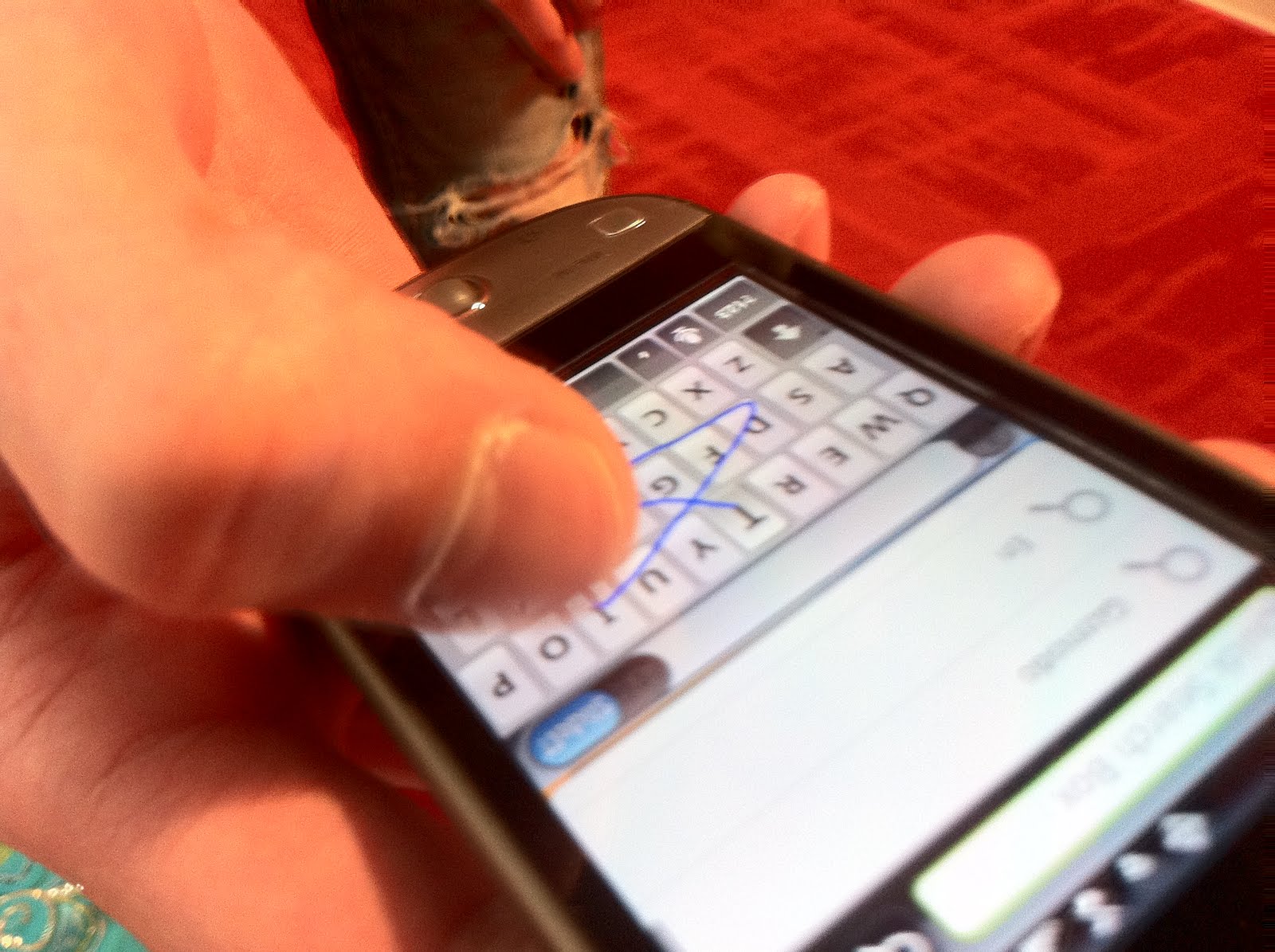
The second keyboard, SlideIT, is an easier way to type on the traditional QWERTY keyboard. Not trying to be cheesy, but instead of picking up your finger, simply slide it - like the name says. It makes typing so much faster than the pecking method of traditional keyboards on mobile devices. Now, people don't have to worry about their finger being too large. You can turn this writing style on and off, so it is really easy to try. It doesn't take very long to get accustomed to this style because you already know the layout and placement of the keys. The only downside of this keyboard is that it tries to guess what word you mean since your fingers don't always hit the proper keys. If you are trying to type in a word that it doesn't recognize it may come up with a "?" or guess something incorrectly. This isn't really a problem, though, because you can add words to the app's vocabulary. This application also comes complete with Graffiti mode, which allows you to draw numbers and letters, which are then read by the mobile device. All in all, I would highly recommend this version of QWERTY typing. It it fast, easy to learn and very convenient. For more information, visit SlideIT's website.

Friday, October 15, 2010

Review: SCVNGR

SCVNGR is my one of my least favorite geolocation applications. Foursquare is the easiest to use, because there are a lot of graphics and it is by far the most popular of the applications. This is nice because not only can you find a lot of your friends on FourSquare, but there are a lot of places that you can check in to that have already been created. This is not the case with SCVNGR. I cannot find a single person who has even heard of this application, let alone who uses it. Therefore, all of my checking in that I have done has been for my own benefit because I have zero friends to report to on this application. The only people I can see on this application are people who geotag their posts on Facebook, but only if you connect with Facebook friends and allow the application to access your Facebook page.

This application is like a game and the purpose is to receive a lot of points and complete treks and challenges. To earn points, you need to check in. You have the option of checking in for one point, a social check-in for two times the points you check in with. For a social check in you must bump phones with another iPhone to check-in with a friend. If you "say something" about the location or whatever you want, you can receive two points. Finally, you can snap a picture of the location you are at for two points. If you are knowledgeable about the location, you can create a challenge.

You can go on "treks," which I was initially very excited about. When I clicked on the trek button, there was only trek available and it said Mizzou. I clicked on it and it only had one location - Faurot Field. I was very disappointed. The only positive I found was that at three locations in Columbia you can redeem rewards if you check in at that location. The only locations available were GameStop and Journeys. I was never close enough to these locations to check in and see the possible reward, but with so few people on this application I wonder how big of a reward it could possibly be.

I like the social check in feature, but other than that, this application is a huge disappointment. There are very few people on this application, and thus very little activity on each of the locations you can check in at. Maybe if the application had more activity and more interesting graphics I would give it another go.